Settings
Configure general preferences used by the other panels:
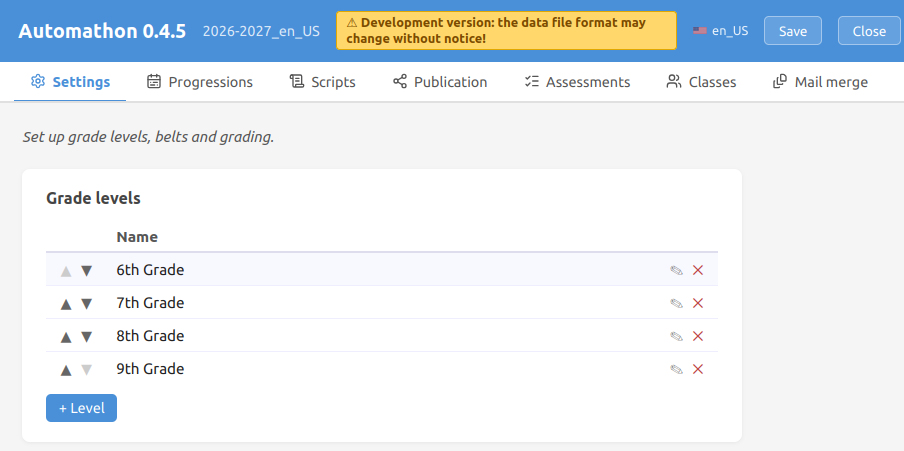
Grade levels
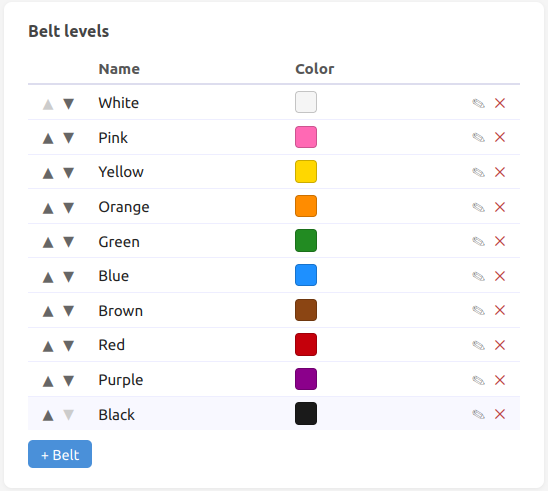
Available belts
All belts that are available for use in your workspace.
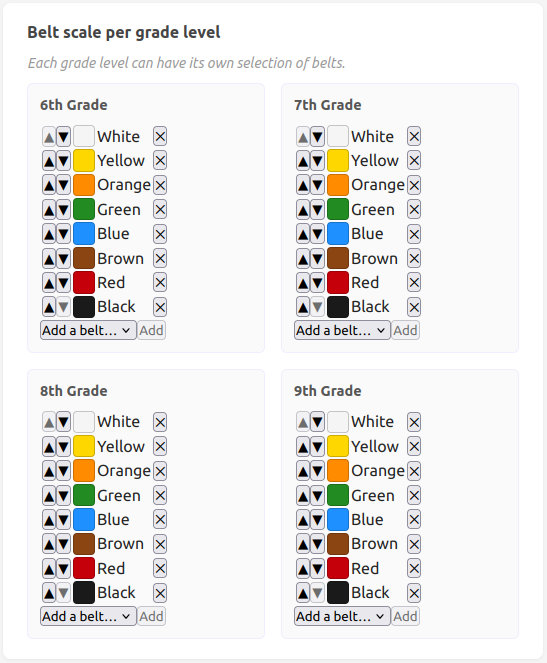
Belts per grade level
The belts scales you want to use, for each grade level. You may want to use a different number of belts for each grade level, it's up to you to decide.
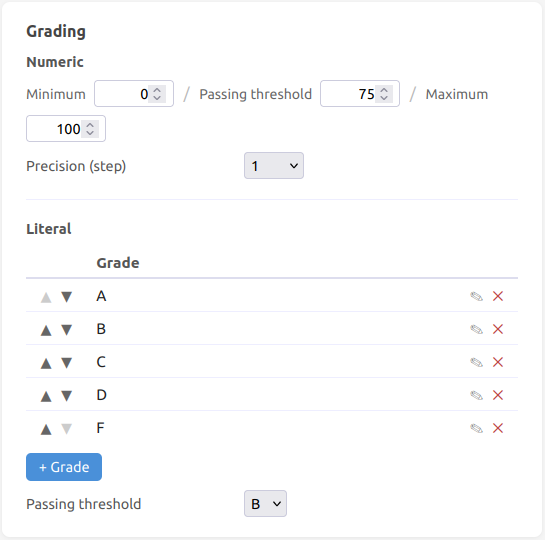
Numeric and literal grading
Both gradings can be used in the same time. Just set them up and use whichever one you want.
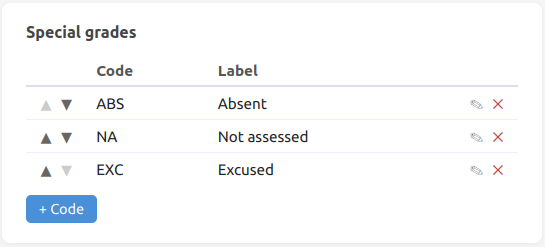
Special grades
These ones are no grades, but used in special cases (absent pupil, or no grade). Set the ones you use here, so Automathon knows about them and does not emphasize them as errors.
Question gauges
How many questions a sheet is meant to hold, for each grade level and each kind of sheet — assessments, slideshows, exercises. When the gauges are switched on, the Scripts panel colours the name of every detected series against the target for the sheet you are looking at, and prints the count beside it (see The question gauge).
A target holds for a grade level as a whole, not for one belt: a level's sheets are expected to hold the same number of questions all year. Leave a field empty to set no gauge there — that one kind, at that one level, then keeps its plain name in the Scripts panel while the others stay measured. The checkbox above the table turns the whole thing off at once, without losing the targets.
Fonts settings
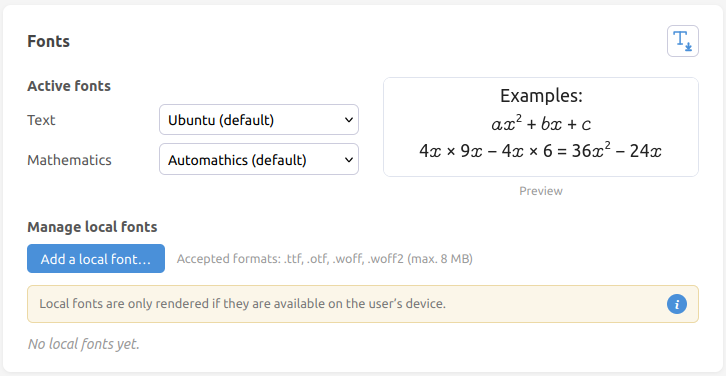
The Fonts panel chooses the text and math fonts used in every document you generate (worksheets, slideshows, mail merge and answer keys). The choice is part of the workspace: it is exported and imported with everything else, and is kept from one document or year to the next.
Active fonts. Pick a font for the text role and one for the math role. Each selector offers two groups:
- Distributable — fonts shipped with Automathics. Their licence is cleared, so they can be embedded in or served with your documents. Picking a distributable family for the text role pairs its bold face automatically, and the family flagged (default) maps to the standard render.
- Local fonts — fonts you imported yourself (see below).
A live preview beside the selectors shows a plain-text line above a math line and re-renders on every change, so you can judge how the two fonts look together before generating anything.
Importing a font is not available yet
The Import a local font… button is greyed out (the ⓘ next to it says so): the feature exists but is not offered for now, and the server refuses upload requests. It will come back once uploads can be authenticated and capped per user. Fonts already imported into a workspace keep working — in local delivery, i.e. wherever they are installed on the device. The paragraph below describes the feature as it will behave then.
Importing a local font. Use Import a local font… to add a .ttf,
.otf, .woff or .woff2 from your machine. An imported font's licence is
unknown to Automathics, so it is only ever referenced by name, never embedded
or served — your documents will show it only on a device where that font is
installed. For this reason, as soon as an imported font is in use the delivery
mode (below) is forced to local. Remove drops the reference from your
workspace; deleting the stored file on the server is an operator task
(automath fonts remove).
Installing a catalogue font. You can download a distributable family as a
.zip of OS-installable faces, with per-OS (Windows / macOS / Linux) install
steps. Once installed on your machine, that font also works in local
delivery anywhere.
Font delivery mode. How the fonts are carried inside the produced HTML. This control lives where it is acted on — the slideshows sub-tab and next to the Generate / Merge buttons — and is workspace-global (change it anywhere, it changes everywhere):
- Embedded — fonts are bundled into the file; it is fully self-contained and works on any machine with no server. Pages are larger.
- Local — only the font names are written; the document renders correctly only where those fonts are installed. Pages are small.
(A third, served, mode exists server-side for the online mini-app, but automathon does not offer it: a document you keep or reopen must work standalone off another machine.) An imported font forces local; a missing font in the catalogue (for instance after a version difference between installs) raises a warning, since it would fall back to the default at render time.
The font badge
Every downloadable page Automathics produces carries a small no-print "T" badge that tells you, at a glance, whether its fonts loaded as intended (it sits next to the print button on worksheets / mail-merge pages / answer keys, and right of the "i" button on slideshows; the interactive pupil page has none):
| Badge | Meaning |
|---|---|
 |
fonts are embedded — the page is self-contained |
 |
fonts are external (served or local) and were found |
 |
a font fell back — it was not served / not installed |
For an external badge a runtime check measures whether the intended text and
math families actually render; if the browser fell back to another font the
badge turns red and its tooltip names the families that fell back (e.g.
… : Inter, Automathics), so you know which font to install (local) or host
(served). An embedded badge is always green.