Progressions
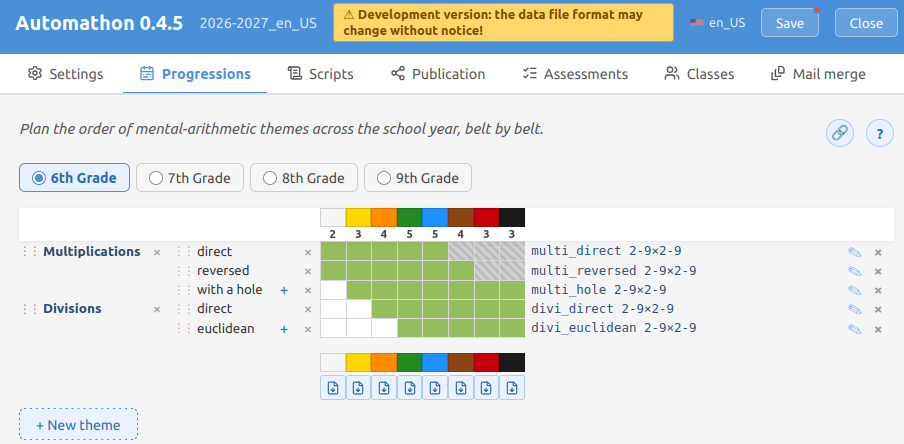
Plan the order of mental-arithmetic themes across the school year, belt by belt, for each grade level. Organise the work into themes and subthemes, and decide at which belt each subtheme starts being assessed.
Each subtheme cell can hold a question spec (e.g. multi_direct 2-9×2-9),
validated against the daemon when you confirm it: a refused spec is not stored
and the reason is shown under the field. A spec that is valid yet questionable
— a range wider than the question type really handles, say — is stored, with
an amber ⚠ beside it whose tooltip carries the remark. Cells can be
merged across belts to share a single spec.
Unlike the other tabs, Progressions is not capped to a comfortable reading width: the grid grows as wide as the browser window, so the question specs stay readable without a horizontal scrollbar. Resize the window to give it more or less room.
The merge (🔗), cancel and ? buttons sit in a small floating bar pinned to the
top-right of the grid. It follows the scroll, so cells low in the grid can be
merged without losing sight of them; while a merge is being built, the bar also
shows how many cells are currently selected.
The grid is interactive (see the in-app ? help for the full list):
- Left-click extends or shrinks the "solo" zone for a subtheme.
- Right-click marks removal from a cell onward, or resets the row.
- Shift-click resets the whole row (thresholds and merge memberships).
For any belt, Preview assessment subject draft builds a draft from the
subthemes assessed at that belt — one question per row. You can preview the
YAML and Add to library so the entry becomes available in Assessments;
the per-type question counts are tuned afterwards by editing the script. The
draft gives each spec its own (1): a leading count or a trailing # comment
written in the spec is left out of it.
A belt whose subthemes don't all carry a spec cannot produce a draft, and its button is greyed out. Pointing at it highlights the offending rows in the grid; clicking it opens a small panel, pinned to the bottom-right corner of the window, listing them grouped by theme. The panel doesn't move with the grid, and the row highlight stays on for as long as it is open, so a progression taller than the screen can be walked through without losing track. Click an entry to scroll to that row and open its spec field right away; the panel closes by itself once the last spec is filled in (and on Esc, on the ×, or by clicking the greyed button again).
Above each belt's download button, a star button lists what is new at that belt: the subthemes appearing there for the first time — the cell just before them is blank — whether they show up on their own or inside a merge. Pointing at it highlights those rows in the grid; clicking it pins the highlight and opens the same kind of bottom-right panel, listing them grouped by theme. The entries are plain text there: the highlight in the grid is the point, so there is nothing to click through to. Only one of the two panels is open at a time. The star is greyed out on a belt that brings nothing new.