Scripts
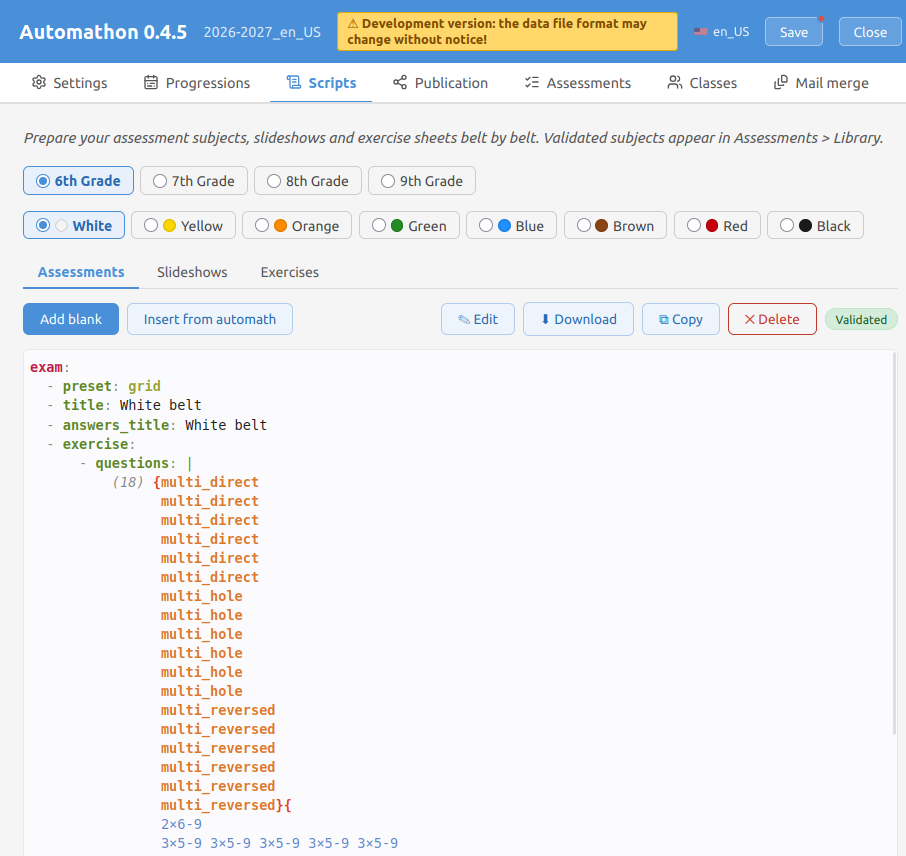
Prepare your assessment subjects, slideshows and exercise sheets belt by belt. Three sub-tabs — Assessments, Slideshows and Exercises — let you author the content for each belt of a grade level.
Start from an empty document (Add blank) or Insert from automath to
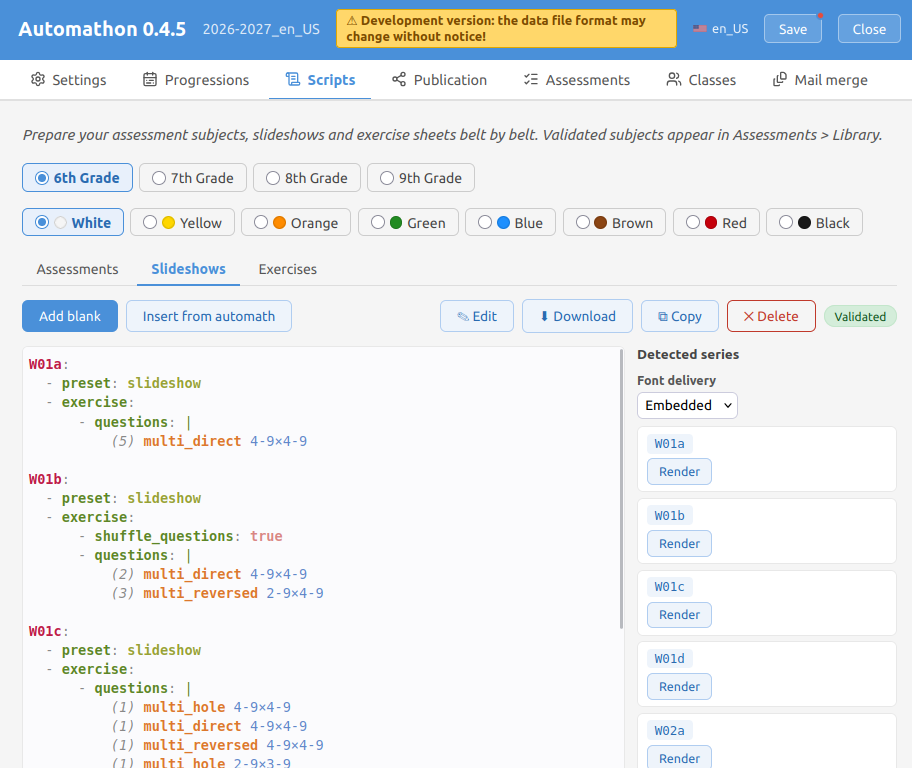
pull in built-in content. A slideshow created either way carries a
title_prefix: holding the grade level, which heads the name of its browser
tab — several slideshows open at once then say which class each belongs to
(see Using HTML slideshows). The built-in YAML editor validates on demand — the
Validate button, and every Save — flags unexpected top-level keys and
duplicate keys, and detects the series a file holds. Every sub-tab lists
them next to the document, each with its own render buttons (an assessment file
holds the single exam series; a slideshows or exercises file holds as many as
you wrote).
Validation is done by automath itself: the document is submitted whole, and
what comes back is what automath would say of it — the structure of each
series (its sections, its preset, its exercise) as well as every question of
its questions: block, down to the sources and options each question type
accepts. The lines at fault are highlighted in the editor. Only the rules that
belong to this app rather than to automath are checked locally: which
series names a file may hold, and the titles an assessment or an exercise
needs.
Comments are welcome anywhere in a script, the questions: block included, and
the editor greys them out wherever they are written — a commented-out question
therefore reads as one at a glance. See
Comments for the rule, in particular a # you
mean to keep in a title.
Some remarks do not make a script invalid — a source range wider than a question type really handles, say. These come back as warnings, in an amber panel next to the ✓: the file still saves as Validated.
Validated subjects appear in the Library (see below), ready to be used from the Assessments panel.
The Library The Library is a per-workspace collection of the subjects and slideshows you validated from Progressions and Scripts. It is distinct from the content shipped with
automath: in Assessments, each source is labelled either Provided by automath or Library.
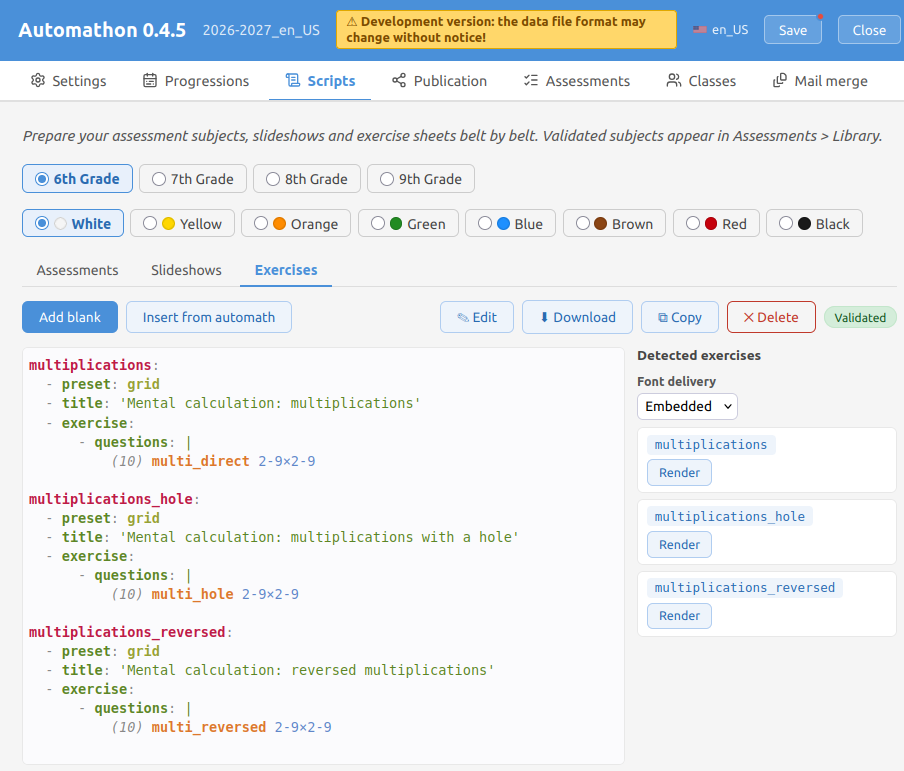
Exercises work just like slideshows — same buttons, the same
Draft/Validated badge, a Detected exercises list with a per-exercise panel and
the font-distribution control — but their names are free (any letter-led run of
letters, digits and underscores, e.g. multiplications_hole; the reserved
exam name is not allowed). An exercise is a grid document with a title,
exactly like an assessment. It renders as the same two-page interactive sheet
— worksheet plus a toggle-able answers page — but it never feeds the
Assessments library.
Once a document is valid you can Render, View the result, and
Download it as a .zip. This works in all three sub-tabs, assessments
included — with the reservation that an assessment rendered here is the bare
grid of its questions: the title, the belt and the reference printed on the
answer key are added when the subject is produced from the Assessments
panel, which is where an assessment is produced for real. Rendering it from
Scripts is for seeing the questions.
The question gauge
When question gauges are switched on
in the settings, each name in the detected-series list carries the number of
questions that series produces, against the target set for this grade level and
this kind of sheet — 19/20 — and is coloured by it:
| amber | fewer questions than the target |
| green | exactly the target |
| red | more questions than the target |
The count is the sum of the (n) opening each line of the questions: block,
whatever the line then expands into: (3) {{ … }} drawing 3 questions out of a
pool of ten counts for 3, and a mix spread over a dozen lines counts once, for
the number it opens with.
A series keeps its plain blue name — and says nothing about a count — when the
gauges are off, when no target is set for that grade level and kind, or when it
declares no questions: block at all.
While editing, the same reading follows you into the editor: the end of each series' own key line carries its gauge, in the same three colours, and it moves as you type. It reads the text rather than the parsed document, so it keeps counting through the half-written YAML an edit passes through, and it does not wait for a key to be correctly named before measuring it.
exam:                          19/20
  - preset: grid
  - exercise:
    - questions: |
        (18) multi_direct 2-9×2-9
        (1) multi_hole 2-9×2-9
Editing a script
Edit opens the editor on one script — the sub-tab you are looking at. The other sub-tabs stay in read mode, and read mode is frameless while the editor gets an accent frame with a halo, so there is never a doubt about which pane accepts your typing.
Your work is kept as long as the editor is open. You can freely switch sub-tab, belt and grade level, leave the Scripts tab and come back: the text, and the cursor, are still there. It even survives closing the browser tab or a crash — the buffer is stored in the workspace database. That is a safety net, not a save: nothing reaches your workspace file until you press Save.
While an editor holds unsaved changes:
- only that script can be edited. The Edit buttons of the other scripts are greyed out, and their tooltip names the script holding the lock. An editor you opened but did not type in locks nothing — it is simply moved.
- a ✎ mark shows where the session lives, on the grade level, the belt and
the sub-tab concerned, and on the Scripts tab itself so it stays visible
from every panel. Next to the grade levels, the full path of the script being
edited —
✎ 5e / White / Assessments— takes you straight back to it in one click. - Add blank and Insert from automath insert into the open editor instead of writing to the file underneath it.
The sub-themes list
Beside the editor stands the list of the sub-themes assessed at this belt, in alphabetical order — every variant of a question type therefore sits with its siblings. Each line reads as three things at once.
Its colour says whether the script already asks it, read live from the text you are typing:
| Colour | Meaning |
|---|---|
| Pink | the script does not ask it |
| Light green | it is asked, but only part of the questions it stands for |
| Firmer green | every question it stands for is asked |
Composing a sheet is largely a matter of making the pink disappear. The reading
comes from the questions: blocks only — a sub-theme named in a comment or in a
title does not count as covered.
The question type alone is not coverage. A sheet asks multi_direct a dozen
times, over all sorts of ranges and options; a sub-theme whose own range is
nowhere to be found stays pink, however many cousins it has in the file. The
whole spec is what is looked for — that is the only reading that answers is
this sub-theme assessed?
Matching is not character-for-character, though. A spec stands for a set of questions — every combination of the values of its sources and options — and a line asks the sub-theme when all the questions it can produce belong to that set. Concretely:
- The options are a set:
-- carry=1 decimals=1and-- decimals=1 carry=1are the same question. - Alternatives match either value: a sub-theme stating
decimals={1|1×1}, as the progressions write it, is matched by a line askingdecimals=1as well as by one askingdecimals=1×1. - An option the sub-theme leaves to a draw matches a line pinning it down.
frac_decimal usual_fractions -- series=basicsays nothing ofto, which automath then draws betweenfractionanddecimal: a line askingto=fractiondoes ask that sub-theme. This only holds for options whose default is declared as a draw by their question type; an option with a fixed default stays strict —multi_direct 2-9×2-9is not matched by a line askingdecimals=1, which is another sub-theme altogether. - Display options are left out:
steps,transduration,answer_layoutandnote_layoutchange how a question is shown, not which one is asked. - A numrange matches a line asking part of it:
divi_euclidean 15×3-6asks part ofdivi_euclidean 15,25×3-6. The sources stay positional, though, and a line reaching outside the sub-theme's range —15×3-7— does not match.
A sub-theme standing for several questions is only fully covered when they are
all asked, by one line or several — that is what the light green is for. The
two lines 15×3-6 and 25×3-6 together make 15,25×3-6 firm green; either one
alone leaves it light green. Likewise to=fraction and to=decimal together,
or decimals=1 and decimals=1×1, or a single line writing the whole group.
Two limits keep the reading reliable — where it cannot be sure, it compares the text as written, which can leave a sub-theme pink but never turns it green by mistake:
- Only simple numranges are read as sets: whole numbers,
a-branges,a,blists and their×products, up to 10 000 values. A range with a filter (2-30[5]), decimals or parentheses is only matched by the same text. - Pairs are compared regardless of order, as automath already treats
2-9×2-9. The flip side:3-6×15reads as15×3-6, although automath would divide 3 by 15 in one and 15 by 3 in the other.
Which options are drawn and which only change the display is declared by each
question type in automath, and read when automathon is built (automath show
questions --json).
The ×n on its right counts the lines asking it — matching lines only, so
the number is about this sub-theme and not about its question type. Lines, not
questions: a (4) divi_direct … line draws four questions but counts as one
occurrence, which is also why it is written ×n and not (n). Mostly useful on
slideshows, where the same question comes back slide after slide. A pink
sub-theme carries no count — there is nothing to count.
The small ⇤ button on its left inserts it into the editor at the cursor position — the arrow points at the editor, which is the pane on the left. That is the only thing that writes: clicking the sub-theme itself no longer inserts anything.
The ⊘ button on its right leaves it out. Some sub-themes can reasonably be sacrificed on a given sheet — the area of a rectangle falls out of the tables of 3 to 9 anyway, so a slideshow that never gets round to them is no drama. Waiving one turns its pink off: the row goes neutral grey, and what stays pink is what still has to be dealt with. The button only appears on a pink sub-theme; waiving one the sheet already asks would be a contradiction rather than a decision.
A waiver is about one sheet: area_rectangle left out of a belt's
slideshows is still expected on its exam. It is part of the workspace, saved and
exported with it, so the decision is not made twice. And it never fights the
script: write the question after all and the sub-theme goes green, the waiver
being dropped for good — remove the question later and it is pink again, waiting
for you to confirm the decision a second time.
Clicking the sub-theme lights the lines asking it, in a colour of its own
shown as a dot next to the name — the very lines the ×n counts, matched the
same way. A pink sub-theme therefore lights nothing, which is the answer to the
question.
Several sub-themes can be lit at the same time, each in its colour (yellow, blue, green, red, orange, violet, brown, then the palette starts over); click again to switch one off. A line asking two lit sub-themes takes the colour of the first one you clicked.
Saving
Save applies the file's validation status:
| Validation | Result |
|---|---|
| Clean (warnings included) | stored as Validated, editor closes |
A qspec or a section is refused |
stored as Draft, editor closes, the errors stay visible above the preview |
| Unparseable YAML, or duplicate top-level keys | nothing is stored, the editor stays open on the error |
The workspace Save button in the header applies the very same rules before
exporting, so an export can never lag behind what you have on screen. A script
that only fails on a qspec is exported as a Draft (a notice tells you so); a
script with a blocking error cancels the export and takes you back to it.
Closing the workspace is the one exit that destroys an unsaved buffer, since it wipes the local database — the close dialog warns you explicitly when an edit is in progress.
Leaving the page altogether (closing the browser tab, reloading) raises the browser's own "leave site?" confirmation as soon as anything is unsaved — either an open editor, or workspace changes not yet exported. Its wording comes from the browser and cannot name what is at stake; the close dialog above remains the detailed one.